WANT TO BUILD AND SCALE THE BUSINESS OF YOUR DREAMS THIS 2024?
Join the Digital Grandmaster coaching program and become part of top 10% of elite marketers. Learn our proven framework to get customers and scale your profits.
P.S. We are limiting the first batch to 100 students. Limited seats only, don't wait! Click 'JOIN THE WAIT LIST' and be the first to get notified when we open registration.
THE ONLY THINGS THAT MATTER IN BECOMING A DIGITAL GRANDMASTER
Our goal is for you to learn all these in no-nonsense knowledge-packed program with
daily lessons, action plans, coaching calls, group discussions and masterminds.
MENTOR
Every successful business owner or marketer has a great mentor. Our decades of experience coupled with strategies and tactics we learnt from our mentors and marketing experiments is 100% at your disposal.
MINDSET
In week 1, we learn how to have the right mindset in becoming a great marketer. Will help you create your daily learning goals, business goals, achieving optimal productivity and most importantly how to spot opportunities quickly.
MARKET
You will learn how to pick the right market and carve out your own niche, research methodologies that can save you hours of guess work. You will become a student of your market and learn to craft your product or services.
AUDIENCE
You will learn who your ideal customers are and what job they are hiring your product or services for, in order to help solve a problem for them. You will not only learn who they are, but also where they hangout and how to reach them when they want you
FUNNEL
Once you know who your audience is, you need learn how to attract them to your product or service. You will learn how to effectively move them through a funnel by qualifying, segmenting, nurturing and selling, subliminally making them a customer advocate.
OFFER
Crafting a superior offer is the key to business success. You will learn copywriting hacks, headline formulas, power words, storytelling methods and everything you need to master in positioning your product or service at the highest level.
TRAFFIC
Driving traffic to your funnel is commonsense. But what is not so very apparent is having the ability to understand the advertising algorithms so that the machine cooperates with you to bring the best results on your advertising spend. You need to master this truly valuable skill.
TRIBE
You will learn how to create a tribe - who are irrationally happy about your brand. Usually marketing ends where sales is made, you will learn methods to make the most out of your current customers. This is an exceptional skill to master, which you truly will.
How this program is different and why this is the best investment you will make in 2024
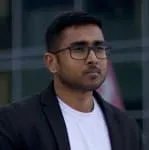
Mark Cijo, Oct 24th 2024
Dear friend,
If you're reading this, it means that you're interested in finding out more about the Digital Grandmaster Coaching Program.
I believe that this is where I'm supposed to "sell" you on the idea,
but frankly speaking, ...
This Isn't For Everyone.
I know, I know... that sounds like some sort of attempt at "takeaway selling"... but that's not my angle here.
The real reason I say it is because when some people see "online program", they immediately equate it with "course", and that's not really what the Digital Grandmaster program is all about.
It is not just another course. I will tell you why. Before we get in to that, let me tell how I go to this.
I've been in the digital marketing and consulting space for over a decade. I have worked with clients from over 30 industries, in projects of various sizes, at different growth stages, based around the world.
I have studied over 600 websites' backend analytics data during my career and have learnt a lot from industry trends, marketing system changes and what not.
I was living the life any consultant would dream of, learning from many mentors, masterminds, testing all ideas and one phone call from one of my intern changed my life.
He said, he is so happy that he met me and learnt digital marketing, that he worked with me for over 2 years. He quit his job and started a consulting business. I got goosebumps... yes, literally.
I still remember that day when me and my friend after closing our agency for holidays [yes, I co-founded a digital marketing agency in 2009] went to pick this boy from the train station. At that time, he was a nursing graduate and wasn't very happy with his job. On our way back home (a 3 hour drive), we talked about many things and I asked him if he'd like to join our agency as an intern, and I'd teach him what I knew.
I asked him to give it a try and told him that he could go back to his nursing job should he not like the internship.
Fast forward 6 years, he was promoted to the Head of SEO position in our agency when I moved to Dubai. Later, he got hired by another agency, and ultimately started his own digital marketing consulting business.
Same story with all other freshers we hired in the company. I trained them fresh and now they all are working in different media houses, marketing agencies, in-house teams as lead marketers.
I am not claiming I can take 100% of the credit, but the thing is - having the right mindset, having the right start, and learning the right way - plays a major part!
After the phone call, I had this epiphany that I have a bigger role to play. Over the last few years, I had the opportunity to train and mentor many marketers.
Now is the time to take this gift to the masses.
That is where my Digital Grandmaster program is coming from. Over the past 6 months, I spent time compiling everything that has worked for me, every golden nugget that I'd learnt, tested and pack it into a system that could easily be cloned and reproduced.
The Digital Grandmaster program contains everything that is required to make you a digital grandmaster - a champion of your craft.
See, the main reason people join any online course is NOT because they want to master a skill, network, and exchange ideas with other successful students/entrepreneurs.
Of course they do network and exchange ideas, but the real reason they join a course is because they want ...
MORE MONEY AND LESS STRESS.
MORE FREEDOM AND CONTROL OF THEIR LIFE
And that's really what they want.
The reason why is because if I take you on as a student and you follow my the program, you will get a positive return on your investment.
Period.
And you'll enjoy the process. That means less stress and you will have more freedom.
I will be working very closely with you on this program week after week. We will have weekly calls, Facebook group, have open conversations, brainstorming and what not - you will get face time with me.
This is all but limited to the first 100 students who are accepted into this program.
As I said earlier, this is not for everyone. This is only for those who believe in investing in themselves, staying 100% committed.
As a bonus for early sign up, I am going to invite you to one of my secret mastermind call happening in few days where I share with my core team the strategy we applied in our 6 figure Holiday Sale Campaign past few weeks.
Still not sure?
There is no risk here, all you need to do is enter your details below and you will be the first one to get early access to the Digital Grandmaster program.
Make sure to sign up below and I will see you on the other side soon.